Kooomator
Kooomator is a command line interface (CLI) tool to manage your store template. It allows you edit your template files locally with your favourite IDE and preview those changes in your store. Once you are happy with your changes you can easily deploy them live.
It also allows you update your current template with the latest changes from the main Skeleton. (Over time, the Skeleton template will have new features/files added to it, which Kooomo can ‘push’ to developer's codebases through kooomator)
Getting Started
Pre-requisites
- Node.js 14.0.0 or higher
- Access to Kooomo Admin for your merchant account
- Kooomo API key - contact your account manager
WARNING
Each developer should use a unique API key. The API key is used to build a testing environment, if multiple developers use the same API key, they will overwrite their changes on each other.
Downloading the Skeleton Template
Go to your store backoffice using Kooomo Platform Portal
Go to
Settings->ThemesDownload your template
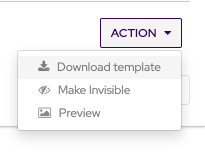
Unzip the file you’ve just downloaded
- This will now be referred to as your ‘working directory’
Now you have a local copy of the Skeleton template
WARNING
It is highly recommended that you only download your template once and then you upload it to a version control system like Github, Gitlab, Bitbucket or similar. In that way you can track all your changes, manage features using branches and easily work with a team.
Setup Kooomator
Run the following command on the root of your unzipped template folder
npm install- This command will take all the packages listed in the
package.jsonand install them into thenode_modulesfolder
Now you can execute
kooomatornpx kooomatornpxis a tool shipped withnodejsthat allows you execute node binaries either installed on the project or globally
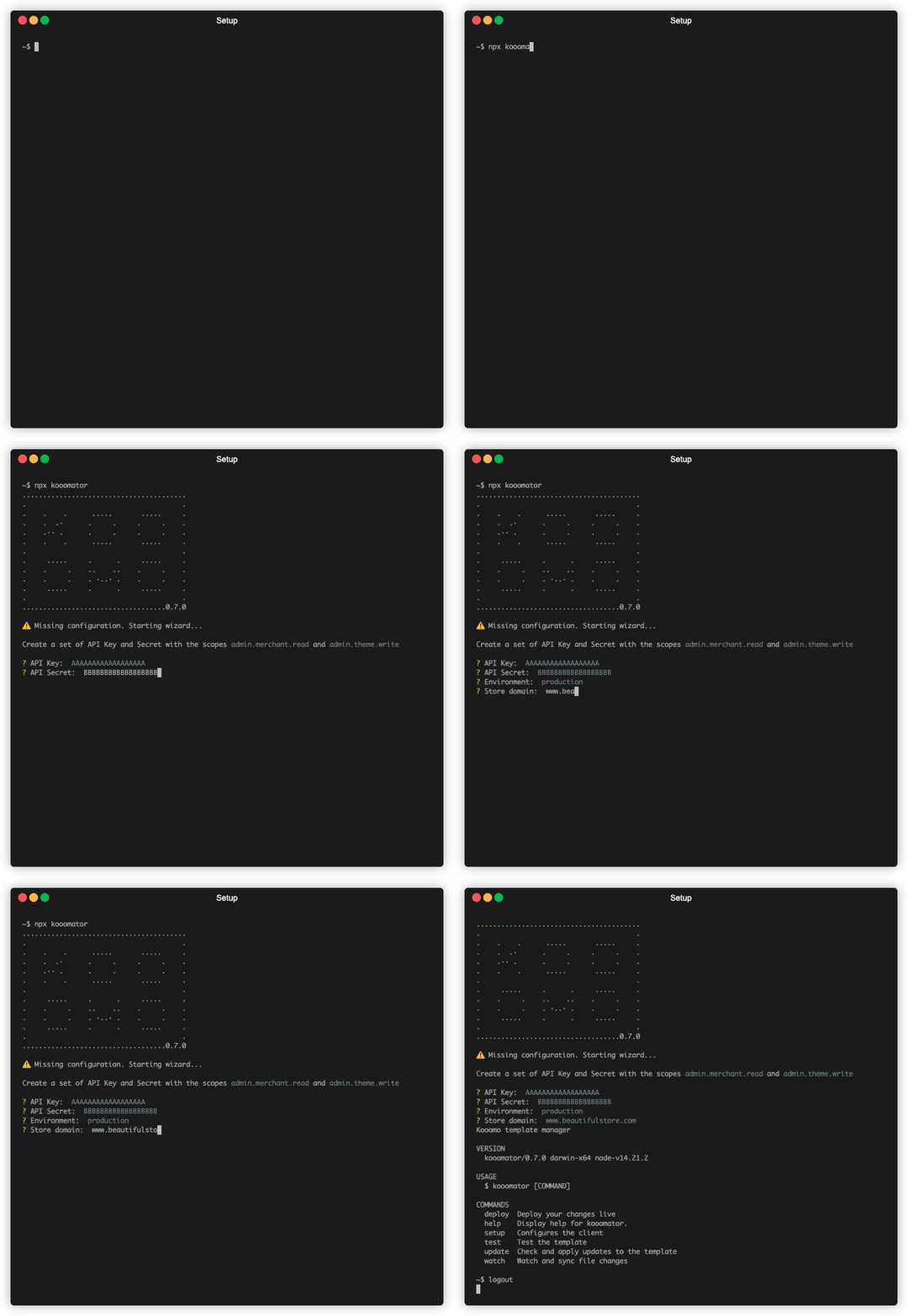
Now kooomator will detect that it is the first time running and will require some initial setup.
- You can also rerun this step with
npx kooomator setup
- You can also rerun this step with
Enter your API Key and API Secret
- Contact your account manager if needed
Select the environment to work
productionmeans you’ll be viewing your changes with the live Production database, live data, real payments etc.stagingis our staging environment, with a copy of the production database from the day before, that gets refreshed nightly. Choosing this option will append.zgstage.comto your URL, which will then be hosted on Kooomo’s staging server (so e.g.www.beautifulstore.com.zgstage.com)
Write your store URL without the https protocol. i.e.:
www.beautifulstore.comNow you are all set up to use kooomator.
- Next, checkout the Usage Instructions
Usage Instructions
Kooomator supports the following commands:
Setup
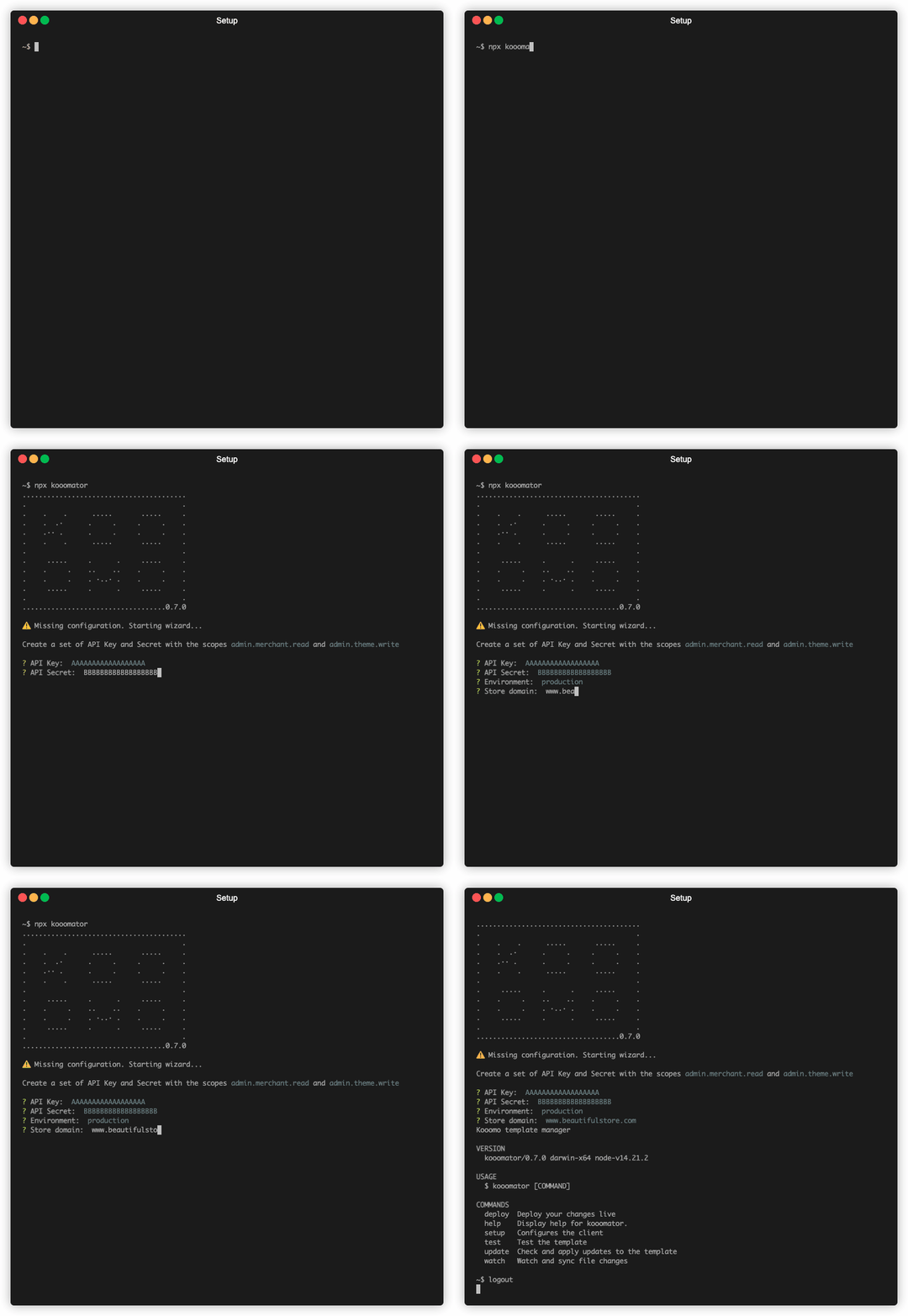
npx kooomator setup
Runs the setup wizard to configure or reconfigure your API keys, store domain and environment.
Test
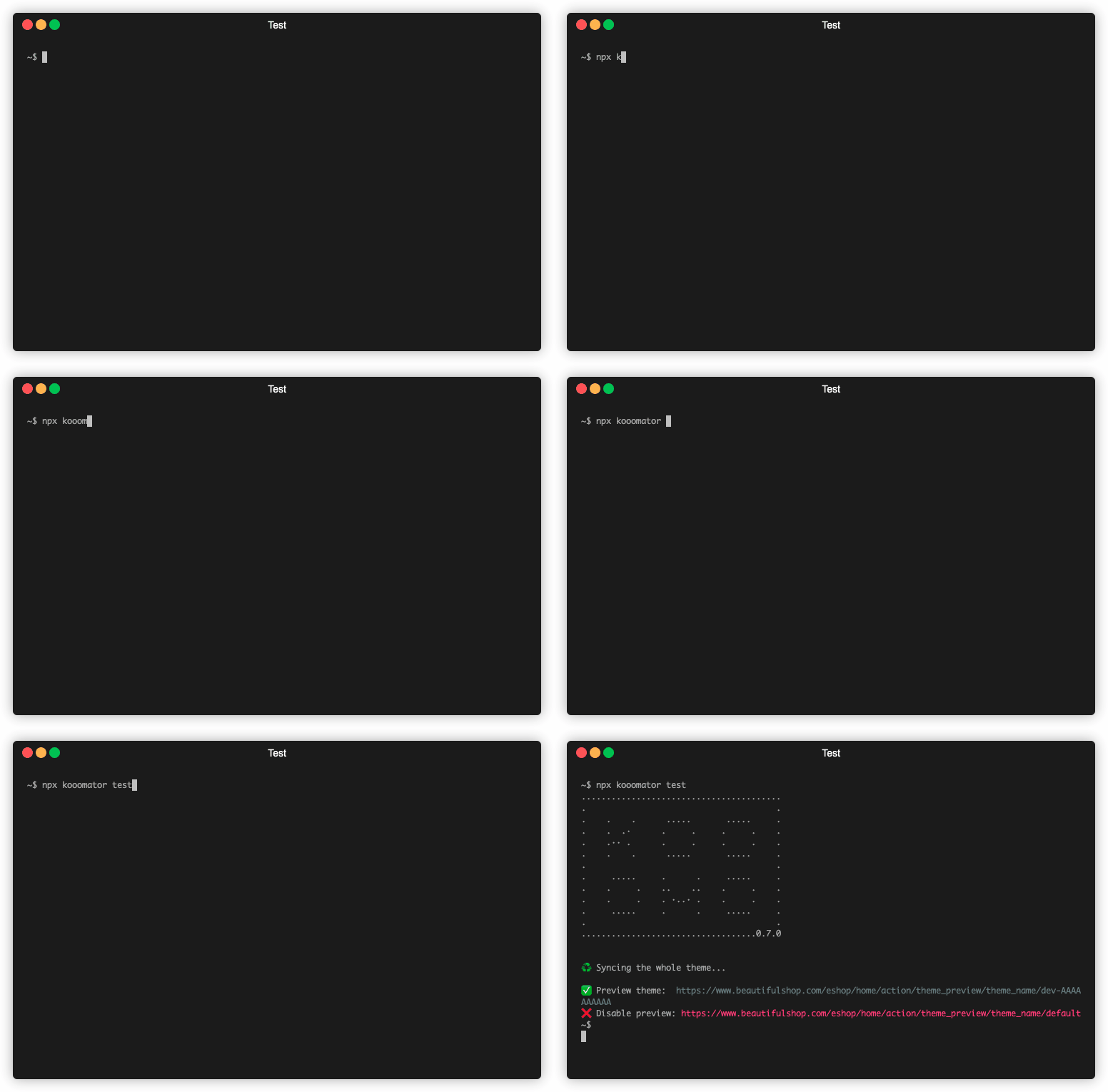
npx kooomator test
If you want to preview your template, you can simply call the test command. This will pack and deploy your template in a testing session without affecting your live template.
::: info Remember that you need to compile your static assets before test your changes. Please refer to Skeleton Compilation :::
Watch
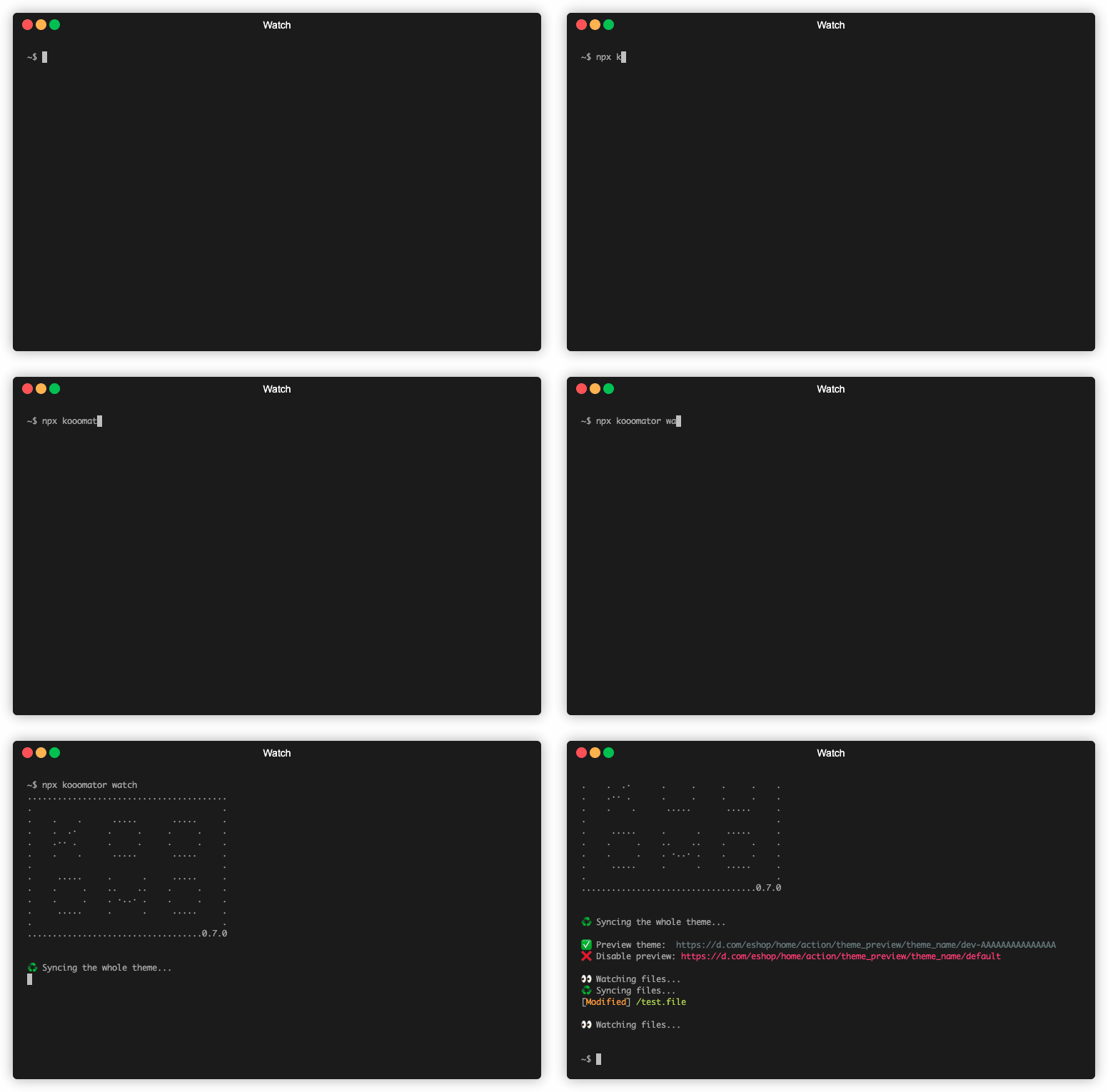
npx kooomator watch
Like the test command, watch will pack and deploy your template in a testing session, but it will keep watching for local file changes and synchronize them automatically every time you change them.
Deploy
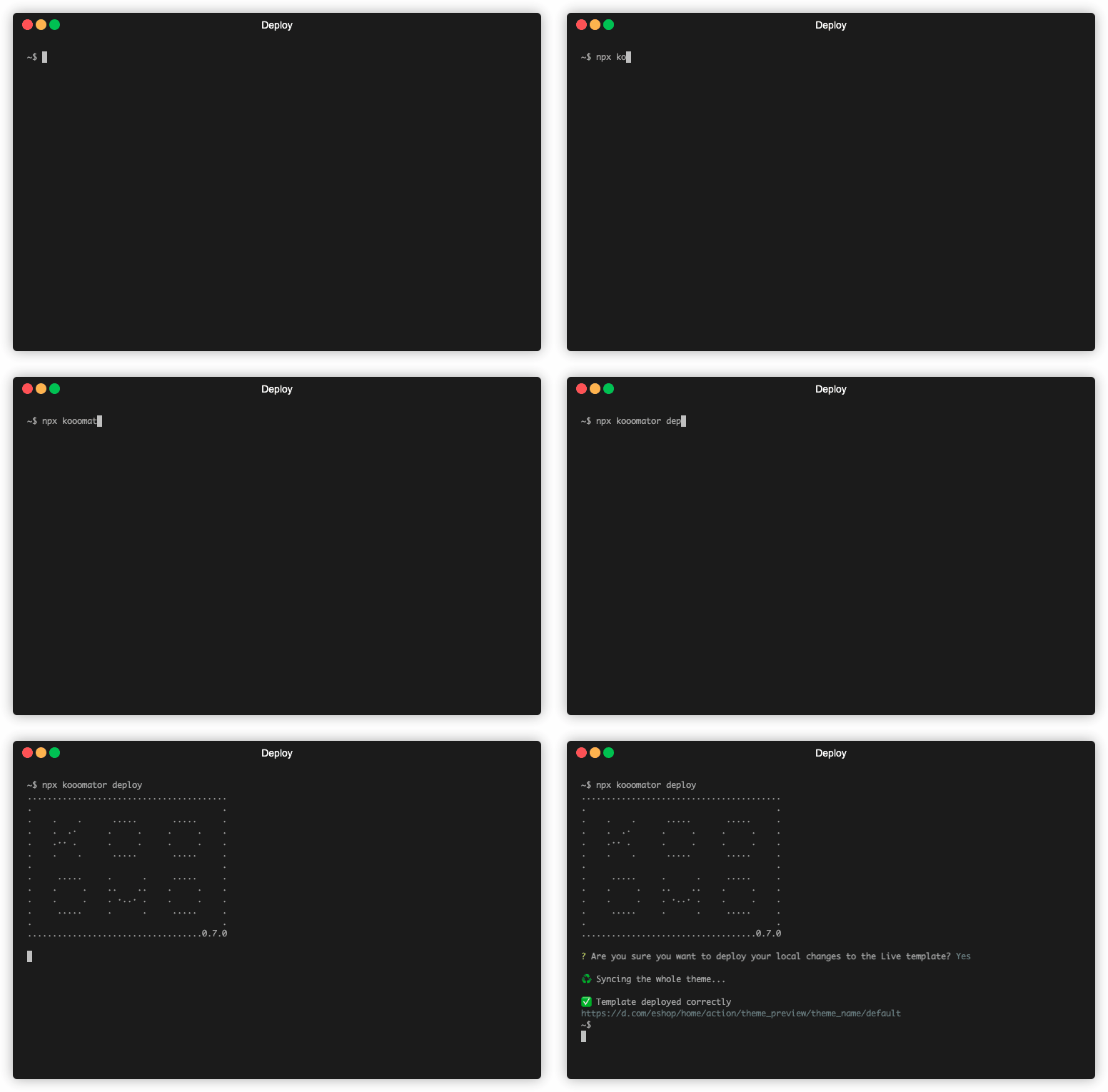
npx kooomator deploy
Once you are happy with your changes, you can use the deploy command to move your changes live.
::: info Remember that you need to compile your static assets before test your changes. Please refer to Skeleton Compilation :::
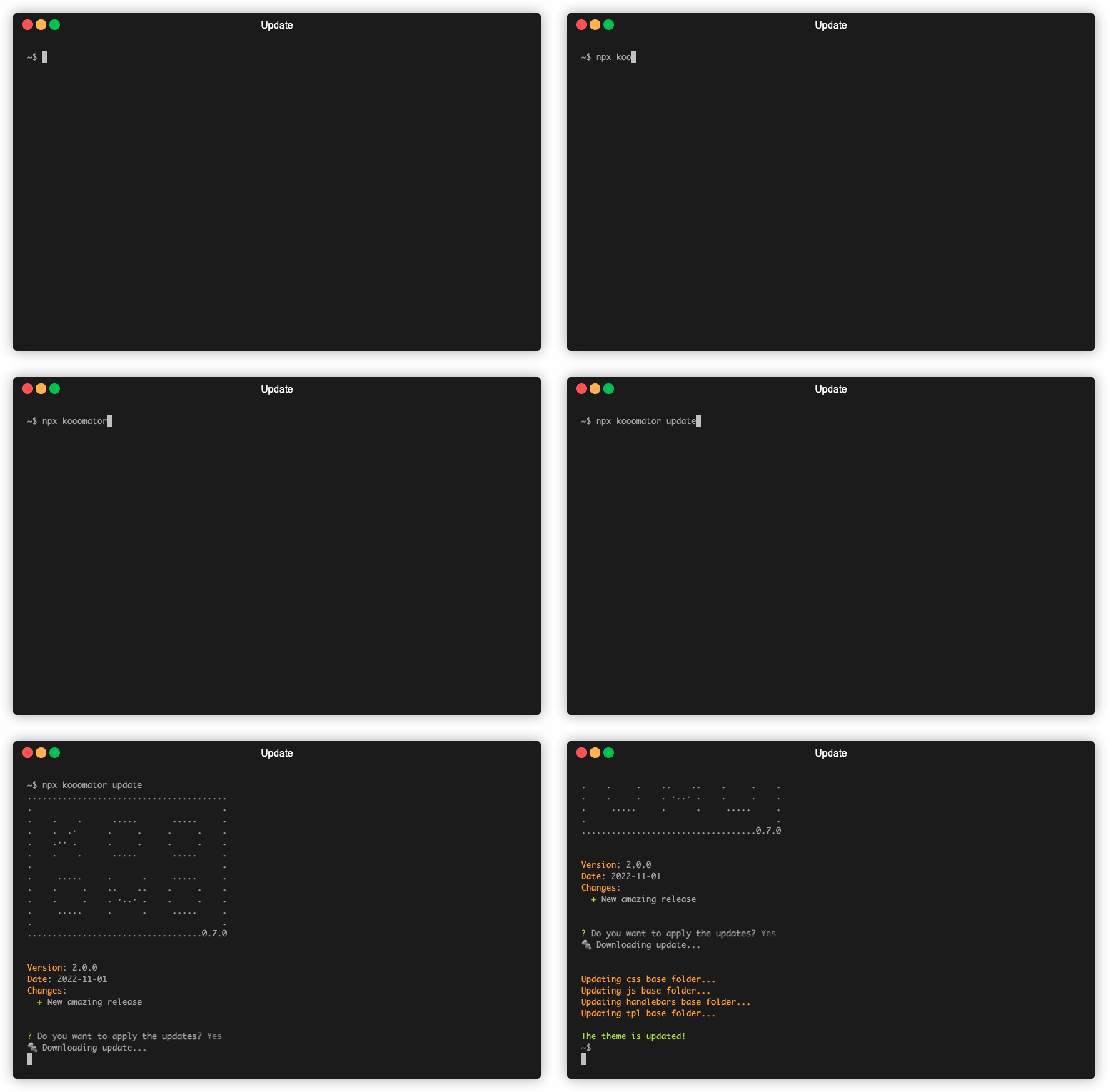
Update
npx kooomator update
Allows you to update your template with the latest changes and features from the Skeleton template.
::: info
This command overwrites the content of the base folders (css, js, handlebars and tpl). Make sure you are following the right customisation flow that you can find in the README.md inside each folder to avoid losing data.
:::